

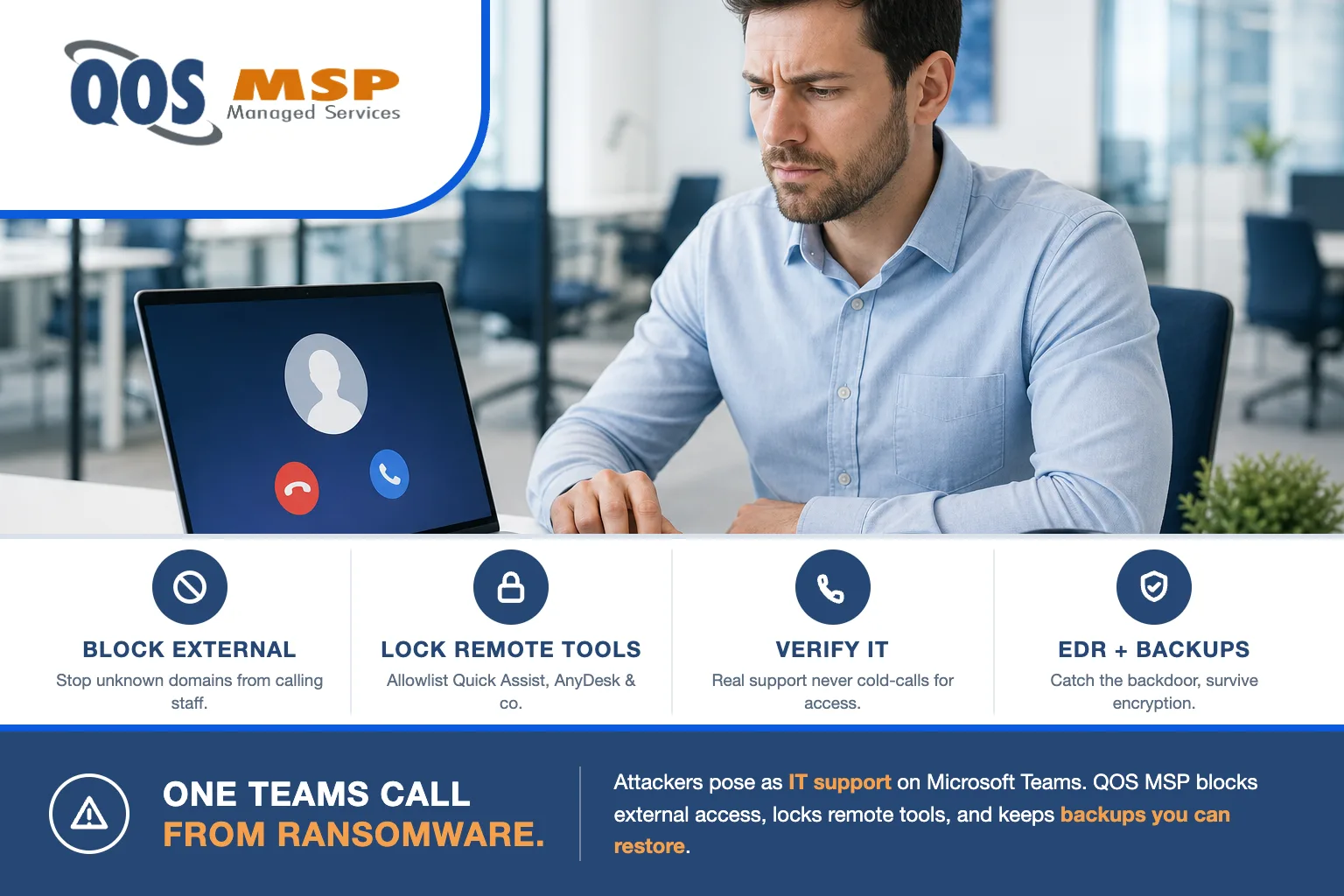
Microsoft Teams vishing attacks (voice-phishing calls where a stranger poses as IT support inside Teams) are how a financially motivated group tracked as STAC4749 talks employees into a remote-access session and deploys Chaos ransomware in as little as 17 hours. The single most effective defense is blocking external Teams users from contacting your staff. Everything below is how the attack works and the seven controls that stop it.
What’s actually happening?
Between February and June 2026, security firm Sophos tracked a campaign it calls STAC4749 that hit dozens of businesses across the US and Canada — roughly 95% of victims split between the two countries, concentrated in services, manufacturing, energy, and construction/engineering. It led to at least three confirmed Chaos ransomware deployments.
This isn’t a nation-state operation. Sophos assesses STAC4749 as financially motivated — either deploying ransomware directly or working with affiliates. Chaos has run as ransomware-as-a-service since February 2025 and is tied to former members of the BlackSuit and Royal gangs, both spinoffs of the notorious Conti syndicate. The people behind this are experienced, organized, and fast.
Why Microsoft Teams is the perfect disguise
The whole attack rests on one thing: you trust Teams. A message or call arriving through your own company’s collaboration platform feels internal, even when it isn’t. Attackers run the same trust play over email, not just voice — a fake vendor invoice that sails through DMARC carries the identical borrowed credibility, just in your inbox.
By default, Microsoft Teams allows external access (federation) — meaning people from outside your organization can message and call your employees. STAC4749 exploited exactly this. Instead of Microsoft’s normal onmicrosoft.com tenants, they registered external accounts on fake IT-themed domains — names like sequrityupdate[.]top, system-connect[.]top, and supportsoft[.]top — and posed as help desk staff using invented names such as Anthony Brooks and Dylan Harper. To the employee, it looks like a support tech reaching out on Teams. That’s all the credibility the attacker needs.
Teams rides on the same Microsoft 365 stack most businesses already run — if you’re still choosing platforms, here’s our honest take on Google Workspace vs. Microsoft 365.
Inside Microsoft Teams vishing attacks, step by step
The campaign moves in a tight, repeatable sequence:
| Step | What the attacker does | What it looks like to you |
|---|---|---|
| 1. Contact | Calls from an external Teams account on a fake IT domain, posing as support. Calls run 90 seconds to 20 minutes — most about two to two-and-a-half minutes. | “IT support” is calling you on Teams. |
| 2. Remote session | Talks you into launching a remote-access tool — first Microsoft Quick Assist, then RemSupp (they switched in April to dodge corporate blocklists). | A helpful tech asks to “take a quick look.” |
| 3. Backdoor + persistence | Drops a PowerShell backdoor into your %AppData% folder and hides startup entries disguised as fake “Realtek HD Audio” registry keys. | Nothing — this is invisible to the user. |
| 4. Spread | Installs DWAgent and AnyDesk, enables Remote Desktop (RDP), and moves laterally toward your backups. | Nothing visible until it’s too late. |
| 5. Ransomware | Deploys Chaos, encrypting files across devices simultaneously and dropping a readme.chaos.txt note; data is stolen first for double extortion. | Files locked; a ransom demand. |
In one documented incident, less than 17 hours passed between the first Teams call and full encryption. This is not a slow burn — a single employee saying “yes” to a remote session can put your whole environment on the clock.
7 ways to protect yourself and your company
Stopping Microsoft Teams vishing attacks doesn’t take seven new products. You need the root cause closed and a few layers behind it, in case one fails.
1. Lock down Microsoft Teams external access
This is the one that ends the attack before it starts. In the Teams admin center, switch External Access from “allow all” to an allowlist of trusted partner domains only — or turn it off if you don’t need it. If a stranger on a .top domain can’t call your staff, this entire campaign never reaches step one.
2. Restrict remote-access tools
STAC4749 relies on Quick Assist, RemSupp, AnyDesk, and DWAgent. Block or uninstall the ones you don’t use, and require approval for the ones you do, using application allowlisting. The attackers switched tools mid-campaign specifically because blocklists were catching them — which tells you these controls work.
3. Give your team a verified way to reach IT
Real IT support does not cold-call an employee out of the blue and ask for a remote session. Publish a single, known way to reach your help desk — a number, a portal — and make the rule simple: if support contacts you first, hang up and call back on the known channel. Verification kills social engineering.
4. Train people to expect help-desk impersonation
Awareness training that names this specific scam — a “tech” calling on Teams — beats generic phishing slides. Your staff should feel comfortable saying no and reporting it, with zero blame for the person who nearly fell for it.
5. Put EDR and monitoring on every endpoint
Modern endpoint detection catches the parts the user can’t see: PowerShell backdoors, the fake “Realtek” persistence entries, and unexpected RDP being enabled. This is your net for the day someone does grant access — the same monitoring behind our security administration service.
6. Enforce least privilege and MFA
If the compromised employee isn’t a local admin and can’t reach the whole network, the attacker’s lateral movement stalls. Multi-factor authentication on every account limits how far one stolen session can travel.
7. Keep immutable, offline backups
Chaos deliberately hunts for backups before it encrypts. Backups that are immutable or offline — that ransomware can’t reach or overwrite — are the difference between a bad afternoon and a business-ending event.
What to do if it’s already happening
Microsoft Teams vishing attacks move fast, so if an employee realizes they gave someone remote access, act immediately. For the full incident playbook, see what to do after a ransomware attack in the first 24 hours:
- Disconnect the device from the network immediately — pull Wi-Fi or Ethernet. Don’t just close the app; the attacker may still be connected.
- Call your IT team or MSP now, not later. Speed is everything given the sub-17-hour timeline.
- Don’t wipe it yet — preserve the machine so the persistence and any stolen-data footprint can be found.
- Reset that user’s credentials and check for the Realtek-named registry entries and any unexpected remote tools (AnyDesk, DWAgent).
- Assume data was taken. This is double extortion — plan for disclosure obligations, not just recovery.
Frequently asked questions
Can outsiders really call my staff on Microsoft Teams?
Yes. Teams allows external access (federation) by default, so anyone with a Teams account on any domain can message or call your employees unless you restrict it. That default is exactly what this campaign abuses.
Is Microsoft Quick Assist safe to leave enabled?
Quick Assist is a legitimate Microsoft tool, but attackers favor it because it is already trusted and often unrestricted. If your team does not use it, disable it; if you do, control who can run it with application allowlisting.
How fast does this go from a call to ransomware?
In one Sophos-documented case, under 17 hours passed from the first Teams contact to files being encrypted. Assume you have hours, not days, to respond.
What should an employee do if IT support calls unexpectedly on Teams?
Do not grant remote access. Hang up and contact your real help desk through the known internal channel to confirm. A legitimate technician will never object to being verified.
Does this only hit large companies?
No. The victims were dozens of small and mid-sized firms across services, manufacturing, energy, and construction — sectors full of businesses that assume they are too small to be targeted.
How QOS MSP locks this down
We manage IT and security operations for businesses that don’t have the time to babysit a Teams admin console — and we’ve done it since 2007. For our clients, the controls above aren’t a to-do list; they’re the standard build: external Teams access restricted to trusted domains, remote-access tools allowlisted, EDR on every endpoint, MFA and least privilege enforced, and backups kept immutable and offline. It’s the same discipline behind our managed Microsoft 365 service. (BCDR is included in your plan at every tier — the redundant systems continuity runs on, like standby cloud capacity or a second site, are billed separately.)
Here’s the honest part: you can do a lot of this yourself. Tightening Teams external access and publishing a verified help-desk process cost nothing but an afternoon, and every business should do them today regardless of who runs their IT. Where an MSP earns its keep is the 24×7 monitoring and the sub-17-hour response — the parts that only work if someone is watching when the call comes in.
If you’d rather not find out the hard way whether your Teams tenant is wide open, talk to us — we’ll check it with you. For the broader technical picture, work through our small business cybersecurity checklist, and see how the same social-engineering playbook is evolving in our breakdown of AI attack vectors at car dealerships.
