

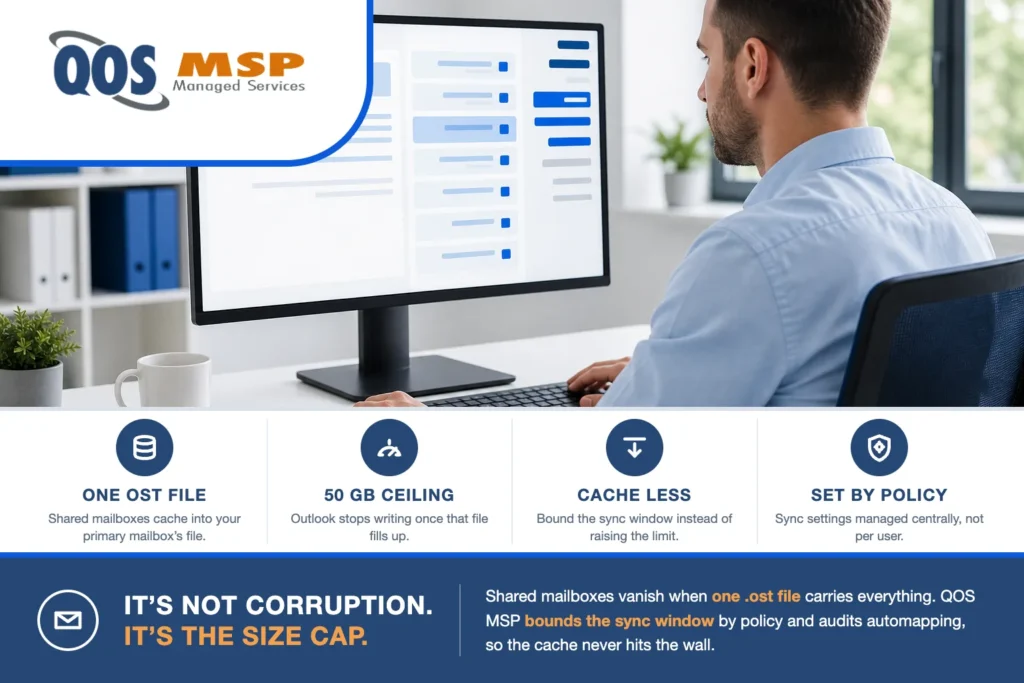
Shared mailboxes vanishing from Outlook is almost never OST corruption. Automapped shared mailboxes cache into the same .ost file as your primary mailbox — so set “Mail to keep offline” to All, add two or three large shared mailboxes, and that one file walks straight into Outlook’s 50 GB ceiling.
Past WarnLargeFileSize (47.5 GB by default) Outlook starts refusing writes to the file. Folders go stale, show empty, throw Send/Receive errors, or drop out of the folder pane entirely. Nothing is actually damaged — which is exactly why running scanpst or rebuilding the OST appears to fix it for about a week, and then it comes back.
We manage mailboxes across both Microsoft 365 and Google Workspace, and this is one of the most misdiagnosed Outlook problems we get handed. It gets escalated as “corrupt profile,” it gets fixed by rebuilding the OST, and it returns on schedule, because the rebuild refills the same oversized cache from the server.
| What it looks like | What’s actually happening |
|---|---|
| “The shared mailbox disappeared overnight” | The OST hit its size cap; Outlook stopped writing to it |
| “It’s there but completely empty” | Hierarchy sync failed — folder count or size ceiling |
| “New mail shows on the phone, not in Outlook” | Local cache is write-blocked; the server is fine |
| “Deleted items keep coming back” | Sync stalled; the local view is frozen, not wrong |
| “We rebuilt the OST and it worked for a week” | The rebuild refilled the same oversized cache |
Why do shared mailboxes end up in your primary OST file?
Two defaults combine, and neither is obviously wrong on its own.
- Automapping. Granting a user
FullAccesson a shared mailbox makes Autodiscover add it to their Outlook profile automatically. Nobody clicks anything; the mailbox simply appears. That’s the convenience everyone wants — and the reason nobody has an inventory of who is mapped to what. - Download Shared Folders is on by default. In Cached Exchange Mode, every folder you have access to in that shared mailbox is downloaded to your local cache. Microsoft has shipped it that way since Outlook 2010. Microsoft documents the default and how to change it in its guide to shared mail folders in Cached Exchange Mode.
The part that catches people: those shared mailboxes do not get their own files. Their contents land in the same .ost as the primary mailbox. A shared mailbox only gets a separate OST if it is deliberately configured as a second Exchange account in the profile.
So the arithmetic is simple, and it’s brutal. A 20 GB primary mailbox set to cache everything, plus three shared mailboxes at 12 GB each, is a 56 GB local file — and the ceiling is 50.
The two ceilings that actually cause this
| Limit | Default value | What happens past it |
|---|---|---|
WarnLargeFileSize | 48,640 MB (47.5 GB) | Outlook begins warning and compacting |
MaxLargeFileSize | 51,200 MB (50 GB) | Writes blocked: can’t move or copy items, mail delivery stalls, Shift+F9 can error or crash |
| Shared folders per mailbox (pre-2019 Outlook) | 500 folders | MAPI session closed by Exchange (event 9646); hierarchy sync fails |
| Shared folders per mailbox (Outlook 1904+) | ~5,000 folders | Same failure, much higher ceiling; actual limit varies with client resources |
| Items per folder | ~100,000 | Performance degrades noticeably (also ~10,000 folders, ~10,000 calendar items) |
| Shared mailbox size (Exchange Online) | 50 GB unlicensed | Receives for a while, then can’t send, then stops receiving and senders get an NDR |
Both registry values live under the same key, and there are two hives — the plain one and the policy one, which wins if it’s set:
HKEY_CURRENT_USERSoftwareMicrosoftOffice16.0OutlookPST
HKEY_CURRENT_USERSoftwarePoliciesMicrosoftOffice16.0OutlookPST

MaxLargeFileSize   REG_DWORD   51200   (MB)
WarnLargeFileSize  REG_DWORD   48640   (MB)
16.0 is Outlook 2016 and later, including Microsoft 365 Apps. Keep the warn value at roughly 95% of the max — that’s the relationship Microsoft ships, and the two should stay at least 5% apart. Both defaults, the valid ranges, and the exact symptoms at the ceiling are in Microsoft’s reference on Outlook data-file size limits.
How do you tell which limit you hit?
Three checks, about two minutes total.
- Measure the OST.
%localappdata%MicrosoftOutlook. If the file is anywhere near 47 GB, you have your answer and you can stop here. - Check whether the mailbox is hidden, not gone. In Outlook’s account settings under “Shared with me,” an admin-automapped mailbox can only be hidden, not removed. If someone hid it, “Show in folder list” brings it straight back — and you’ve just saved yourself an afternoon.
- Read Sync Issues. The Sync Issues folder is the most under-used diagnostic in Outlook. Hierarchy sync failures and
80040305errors point at the folder-count ceiling rather than the size cap. Microsoft covers that ceiling — and the 2019 change that lifted it from 500 to roughly 5,000 folders — in its guidance on shared-folder synchronization problems.
Worth knowing before you start: even well under the limits, Outlook struggles with many shared mailboxes open at once. Microsoft’s own guidance is that a slower machine may not manage more than five open shared folders or mailboxes, and a fast one perhaps ten or more. If a user is mapped to eight shared mailboxes, the problem may simply be that they’re mapped to eight shared mailboxes.
Why scanpst and rebuilding the OST don’t fix it
Because the file isn’t broken.
The OST is a disposable local cache — the server holds the authoritative copy, which is why Microsoft’s guidance for a genuinely damaged OST is to delete it and let Outlook rebuild it rather than repair it. That’s also why the rebuild appears to work: you get a fresh, small file, everything syncs, everyone’s happy. Then it refills from the same mailboxes with the same settings and you’re back at 50 GB.
If you rebuild an OST, the one real risk is anything that exists only locally — unsent drafts and items sitting in the Outbox. For a pure Exchange Online mailbox, everything else comes back from the server.
Rebuild to clear a genuinely damaged cache. Don’t rebuild expecting it to fix a capacity problem.
How to fix shared mailboxes disappearing in Outlook
In the order we actually work through it.
1. Turn off Download Shared Folders
Account Settings → double-click the Exchange account → More Settings → Advanced → clear Download Shared Folders, then restart Outlook. This is the highest-leverage single change: shared mailboxes revert to online mode and stop consuming the OST entirely. The trade-off is real — online-mode folders need connectivity, feel slower, and aren’t available offline. For most office-based users that’s an acceptable trade for a mailbox that actually works.
2. Bring the sync slider back from All
More Settings → Advanced → “Mail to keep offline.” Twelve months is plenty for almost everyone; “All” is a setting people turn on once for a search that didn’t work and then never revisit. Everything older stays fully searchable on the server.
3. Disable automapping for mailboxes the user doesn’t need cached
This is the structural fix. In Exchange Online PowerShell:
Remove-MailboxPermission -Identity <SharedMailbox> -User <User> -AccessRights FullAccess -Confirm:$false
Add-MailboxPermission -Identity <SharedMailbox> -User <User> -AccessRights FullAccess -AutoMapping $false
You remove the permission and re-grant it with automapping off. Access is unchanged; the mailbox just stops force-mounting into everyone’s profile. Users who need it can add it deliberately. Microsoft’s automapping guidance carries the canonical syntax.
4. Add heavily-used shared mailboxes as separate Exchange accounts
Each gets its own OST, so no single file carries everything. The trade-offs Microsoft documents: duplicate new-mail alerts, and messages marked private become visible in the second account’s context.
5. Raise MaxLargeFileSize — last, and knowingly
It buys time and nothing else. Microsoft explicitly discourages pushing past the documented values because performance degrades, and you are choosing to carry a larger file rather than to carry less. Sometimes that’s the right call before a holiday weekend. It is never the answer on its own.
What we standardize so it doesn’t come back
Everything above is a fix. This is the part that stops the ticket recurring, and it’s all group-policy-able under Outlook’s Cached Exchange Mode settings:
- Bound the sync window centrally (
SyncWindowSetting) rather than leaving the slider to users. Twelve months is our default. - Control shared-folder caching centrally (
DownloadSharedFolders,CacheOthersMail). Caching shared calendars while leaving shared mail in online mode gets most of the benefit at a fraction of the size. - Bound shared-mailbox history separately (
SharedFolderSyncWindowSettingDays) and lock the slider (DisableSyncSliderForSharedMailbox) so a well-meaning user can’t undo it. - Keep an actual inventory of automapping. Nobody plans to map a user to nine shared mailboxes. It accumulates one helpful permission grant at a time, over years, and no one ever audits it. We review it on a schedule, because that’s the only way it gets reviewed.
We’ve been doing managed IT since 2007, and the pattern is consistent: this is never one bad decision. It’s five reasonable ones compounding until a file hits a number.
When a shared mailbox is the wrong tool
Sometimes the honest answer is that the mailbox shouldn’t exist.
- Shared mailbox — a real inbox and calendar several people work out of. Free under 50 GB, but capped at 25 concurrent users; past that, expect connection failures and duplicated messages. Any member can delete mail for everyone. (Limits per Microsoft’s shared mailbox documentation.)
- Distribution group — mail fans out to members’ own inboxes. Nothing to cache, nothing to sync, no OST cost at all. If nobody actually needs shared state, this is usually what was wanted.
- Microsoft 365 group — shared inbox plus calendar, Teams and Planner, no 25-user cliff, and you can restrict who deletes what.
A departmental alias that thirty people “monitor” is a distribution group wearing a mailbox costume, and it’s silently landing in thirty OST files.
Frequently asked questions
Is a shared mailbox disappearing from Outlook a sign of OST corruption?
Usually not. The common cause is the OST reaching its 50 GB size limit or a shared mailbox exceeding Outlook’s cached folder-count ceiling. In both cases the file is intact and the server copy is fine — sync has stopped, which looks identical to a user.
How big can an Outlook OST file get?
50 GB by default (MaxLargeFileSize = 51,200 MB), with warnings starting at 47.5 GB (WarnLargeFileSize = 48,640 MB). Both are configurable in the registry, and Microsoft discourages raising them because performance degrades.
Do shared mailboxes have their own OST file?
No. Automapped shared mailboxes cache into the same .ost as your primary mailbox. Only a shared mailbox configured as a separate Exchange account in the profile gets its own file.
Will running scanpst fix a missing shared mailbox?
It won’t address the usual cause, because nothing is damaged. For a genuinely corrupt OST, Microsoft’s guidance is to delete the file and let Outlook rebuild it from the server rather than repair it — but a rebuild does not fix a size-cap problem, it just resets the clock.
How do I stop shared mailboxes from being added to Outlook automatically?
Disable automapping: remove the FullAccess permission and re-grant it with -AutoMapping $false in Exchange Online PowerShell. The user keeps access; the mailbox stops mounting itself into their profile.
Does setting Mail to keep offline to All cause this?
It’s the most common accelerant. Caching all mail on a large primary mailbox, on top of automapped shared mailboxes that also cache by default, is how a single OST reaches 50 GB. Bounding the window to twelve months usually resolves it on its own.
The short version
If a shared mailbox vanished from Outlook, measure the OST before you touch anything else. Almost every time, the file is at or near 50 GB, nothing is corrupt, and the fix is to cache less rather than to repair more.
If you’d rather this were handled before your team notices — the sync window bounded by policy, automapping audited, shared mailboxes sized against something other than hope — that’s the day-to-day of outsourced system administration, and it’s what our managed Microsoft 365 services cover for Indiana businesses. Still deciding between platforms? We wrote an honest comparison of Google Workspace and Microsoft 365 that doesn’t pick a side for you.
